You can also approve and monitor your running third party transactions. Third parties are organizations that have an agreement with TSC for the latter to run monthly deductions from teachers’ pay. The Commission then remits these deductions to the concerned third parties (which include: Banks, Hire Purchase, Insurance, Micro Finance, Saccos and SWAs).
Did you that usage of the T-pay system is subject to a number of terms and conditions that you should familiarize yourself with? Well. Read all the terms below.
TSC PAYSLIP PORTAL (T-PAY) REQUIREMENTS
1) Acceptance of Terms and Conditions
a) The Commission makes T-Pay service available to you on the terms and conditions set out hereunder. This is a service created for the convenience of the all Teachers Service Commission (TSC) stakeholders.
b) If you continue to browse and use this system you are agreeing to comply with and be bound by the following terms and conditions of use. TSC may modify this document at any time, and you agree that such modifications will be effective immediately upon posting of the modified document.
You agree that by using TPay after any such modifications, you will be deemed to have reviewed, agreed to and accepted the modified document.
c) You agree that you will not intentionally provide false information when accessing or using the T-Pay system.
d) You also agree that you will not falsify, forge, or otherwise tamper with any information as appears on the system.
2) Security of Your Personal Information
a) While no web system can protect itself against all eventualities, every effort is made to protect any sensitive personal information you give us. We will not rent, sell or give away any information identifying you individually (name, address,phone number, etc.) to a third party for marketing or mailing list purposes without your permission. We will also not disclose your pay information, except for purposes related to your third party (loan, shares etc.) transaction, or with your permission, or as required by law.
b) Any transaction on T-Pay is initiated by the teacher/user who sends their payslip to any third party that they wish to seek financial assistance, users are therefore discouraged from sharing their passwords with anyone as mechanisms provided within the system for data exchange are adequate and foolproof.
3) T-pay Service availability
a) It is impossible for the Commission to ensure that the services are provided to you at all times or at any specific times or will be able to operate at all times error-free.
After hours provision of services are influenced by availability of related computer systems.
b) The Commission makes no warranties in regard to the availability of services but all reasonable efforts will be made to provide the best possible service to you.
c) Notices regarding planned system outages will be communicated in advance.
4) Collection of Personal Information
a) The Commission does not release any information about the collection of IP addresses to any third party, except under court order or as required by law.
b) The system maintain logs of user activity in order to help us manage the system.
c) The Commission may use this information to learn how many users logged into the system at a particular time and other facts that will help us improve the web site and the services we offer.
5) User ID and Password
a) Your unique Number shall be your TSC or National ID or any other number provided by the Commission, User Name and Password are very important pieces of information and it is your responsibility to keep them secure. You agree to:
i Choose a new Password whenever you are required to do so.
ii Not disclose your Password to any other person, including family members.
iii Take reasonable care when accessing the service to ensure that your Password is not disclosed to any other person.
b) If you suspect that someone may know your Password, change it immediately or visit the nearest TSC office and seek assistance or email the support team at [email protected].
c) You agree that you will be responsible for any transactions made in relation to your account using your User Name and or Password.
6) Access to T-Pay
Your access to T-Pay will be denied if you:
a) Provide incorrect identification information.
b) Alter any downloaded or printed information, forging of payslips to enhance once ability so that you acquire financial assistance from third parties.
c) As a third party institution (Sacco, Bank etc.) are requested to make any adjustment or stop a transaction to facilitate e.g a buy-off and the same is not acted upon within 3 working days.
d) As a third party institution are found in possession of users/teachers User Name and or Password or are found requesting users/teachers for their User Name and or Password.
e) As a user or institution engage in any activity that may compromise the integrity of the system or impair its functionality.
f) As a user do not access your account for a duration of three months.
7) User (teacher) Rights
The Commission reserves the right to deny or revoke access to the system by the teacher where justified.
8) Liability
a) TSC will not be liable for any damages of any kind arising from the use of this site, including, but not limited to, direct, indirect, incidental, consequential and punitive damages.
b) Users are solely responsible for any damage to your computer system or loss of
data that may result from the downloading of any material.
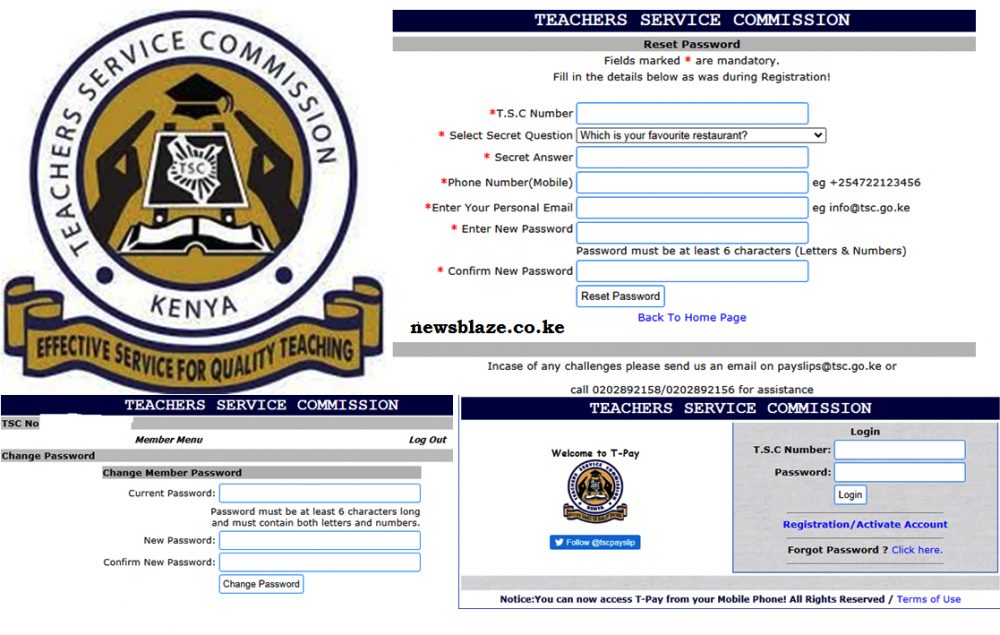
The Teachers Service Commission (TSC) has introduced a new payslip portal for teachers. You can now access your TSC online payslip at https://tpay.tsc.go.ke/. You will still use your TSC number and password as used in the old T-pay portal; payslip.tsc.go.ke/. In case you have forgotten your password, then you can easily reset it.
HOW TO REGISTER FOR TSC ONLINE PAYSLIPS AND THE LOG IN PROCESS AT THE NEW T-PAY PORTAL
To get your payslips online, you must first be registered. Initially the process was done online but, now you must visit your local TSC County office for you to be registered. To log into your T-pay account all you need is your TSC Number and Password.
Once registered you can then proceed to log into the T-pay system to view your payslips and P9 forms. The system also provides a function for teachers to send their latest pay slip to 30 parties such as banks, Saccos, among others, to facilitate acquisition of a loan.
Once logged in, you can perform the following operations:
The Commission has introduced new menu in the T-pay portal. The ‘My Documents’ tab is one of the new menu introduced on the much improved payslips portal.
The new T-pay menu is very user friendly and contains the following menu:
Once you log into the new T-pay system, you may need to keep a copy of your payslip. Simply click on ‘Latest Payslip’ to see the recent payslips (payslips for four months are displayed). To save a copy of your payslip, then, take a screenshot of the payslip. Similarly, click the ‘Print’ tab at the bottom of your payslip.
You can also search for previous payslips by using the ‘Search T-pay menu items’ tab. Then, click the ‘view payslips’ sub-menu.
By using the ‘View P9(s)’ sub menu, you can now access your P9s for the last three years with a lot of ease.
Your payslip contains a number of details. Click here to see an explanation of all the information that is displayed on your payslip.
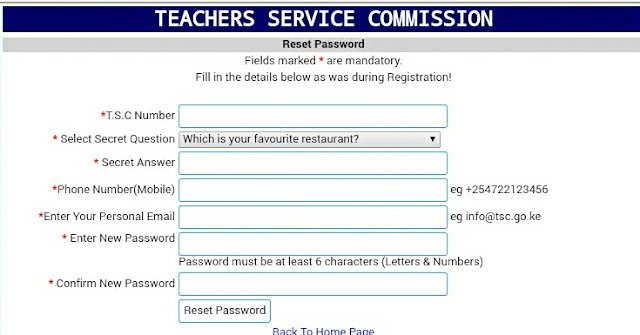
HOW TO RESET YOUR T-PAY PASSWORD.
Did you forget your TSC password? Have no worries. You can also easily reset your T-pay password. This can be achieved by following the simple steps below;
Fill in the required details; (TSC Number, Select the secret question, provide the answer, enter your phone number, email and password)
The click ‘Reset Password’.
Resetting your TSC T-pay password.
In case you have any queries or need any assistance, then you can send an email to: [email protected] or call +254 020 289 2158.
Please, do not disclose your TSC Payslip password to anyone. So many teachers have ended up losing financially by meeting third party deductions (insurance and loans) which they are not aware of.
DETAILS ON THE NEW TSC PAYSLIPS
You may be wondering what the various acronyms, appearing on your payslips, represent. Here is a guide to the abbreviations used on your payslip.
SWAs
This is the short form of Social Welfare Associations. They form part of the third party deductions and include BBFs (Burial and Benevolent Funds), SACCOs and Teachers’ Unions. For deductions to these third parties to be effected, you must authorize them, online.
Provident Fund
This shows the amount you are contributing to the new Superannuation pension scheme.
Ins-P
This is a short expression for Insurance Provider. Some teachers have registered with private insurance companies and remit funds to them via the TSC check off system.
Sac-L
An acronym for SACCO Loan. This is the amount of salary committed to offset a SACCO loan.
Com-L
This means Commercial Loan. Shows the amount of salary slashed to offset a commercial bank loan.
Sac-S
The funds checked off a teacher’s salary on monthly basis towards his/ her savings at the SACCO.
TERMS OF SERVICE
A teacher is either on Permanent and Pensionable terms (P&P) or on Probation (Prob). Whichever is appropriate will be shown on your payslip.
Get TSC Payslip online-You can now easily get your TSC payslips online. All your pay slips are available at the Teachers Service Commission (TSC) online portal (T Pay). This is a simplified guide on how to register, log into the payslips portal (T-pay), view and download your payslips online.
The T-Pay portal also enables you to download your P9 forms (Tax cards for filing KRA individual returns) and checking third party transactions.
STEP BY STEP GUIDE ON HOW TO LOG INTO YOUR TSC PAYSLIPS PORTAL (T-PAY)
Here is a simplified guide on how to log into your TSC Payslips portal:
STEP 2: In the login screen that you see, enter your User Name (TSC/ National ID Number) and Password. Click ‘Login’. In case you forget your password, you have no reasons to be worried. Simply click on the ‘Reset Password’ tab as in above. For a guide on how to easily rest your password, click here; How to easily reset your T-Pay Password online.
STEP 3: Once you click on ‘Login’ you will be redirected to your account dashboard. The Home page contains the T-pay menu items and your personal details. By this, you would have successfully logged into your payslips account.
SIMPLIFIED GUIDE ON HOW TO USE THE T-PAY ACCOUNT MENU ITEMS
Your T-pay account comes with a number of functions. Once you successfully log into your Payslips account, then you can use the various menu items as shown below;
the View Payslips Menu: Click on this tab to see your payslips. You can search for all previous years’ payslips here. Simply select the year and month and click search.
The Send Pay slip(s) Menu: This menu is used to send payslips for third party deductions. Third parties approved by TSC include: Banks, Hire Purchase, Insurance, Micro Finance, Sacco and SWAs (Teachers’ Unions, Welfares, BBFs and others).
The Transactions Menu: See your running third party deductions and approve any pending ones, here.
My Documents Menu:A list of all personal soft copy files as maintained by TSC.
Logout Menu: Click here to exit from your account. Always remember to click this button once you are done with using your account; more so if the computer or phone used is accessible by other people (a public electronic gadget). Many teachers have had their salaries slashed to third parties that they did not sanction. Ensure your passwords are also private and confidential.
TSC Online Payslips- You may be having many questions regarding the Teachers Service Commission (TSC) online payslips. and, perhaps you have been missing the right answers to your queries. Now, you can get official responses to all questions about the TSC online payslips, here.
Question: How do I register tsc payslip online?
Answer: To use the TSC online payslips portal you must first be registered. Registration is no longer done online. Therefore, once you are employed by TSC, visit the local TSC County office. Remember to carry your.. See more details here; TSC payslip online; Register, Login, download payslips and update your profile
How do I view my payslip?
Answer: The ‘View Payslips’ tab is used to access your payslip online. Click on this tab to see your payslips. You can search for all previous years’ payslips here. Simply select the year and month. Get more details here; TSC payslip online; Login, View and download payslips.
Question: How do I login to the tsc payslip online?
Answer: The Teachers Service Commission (TSC) T-Pay Portal is a platform where teachers can access their payslips and P9 forms online. The portal also helps teachers to send their payslips to third parties like teachers’ unions, Banks, Saccos and Insurance Companies. Here is your guide on how to login to the T-Pay Portal; TSC payslip online; Login, download payslips and update your profile
Answer: The ‘View Payslips’ tab is used to access your payslip online. Click on this tab to see your payslips. You can search for all previous years’ payslips here. Simply select the year and month. Get more details here; TSC payslip online; Login, View and download payslips.
Question: How do I send my payslip to a third party?
Answer: The ‘Send Payslip(s)’ menu is available in the T-Pay Portal. This menu is used to send payslips for third party deductions. Third parties approved by TSC include: Banks, Hire Purchase, Insurance, Micro Finance, Sacco and SWAs (Teachers’ Unions, Welfares, BBFs and others). See how to send your payslip here; TSC payslip online; Login, View, Send Payslip to third Party and download payslips.
Question: What do the various acronyms on my payslip represent?
Answer: You may be wondering what the various acronyms, appearing on your payslips, represent. Here is a guide to the abbreviations used on your payslip. Visit; Full details of the new TSC payslip.
Question: How do I update my details on T-pay (Online payslips portal)?
Answer: Did you forget your TSC password? Have no worries. You can also easily reset your T-pay password. This can be achieved by following the simple steps below; How to reset your TSC payslip password.
Question: How do I get my payslip online?
Answer: The ‘View Payslips’ tab is used to access your payslip online. Click on this tab to see your payslips. You can search for all previous years’ payslips here. Simply select the year and month. Get more details here; TSC payslip online; Login, View and download payslips.
The Government Human Resource Information System (GHRIS) is a Human Resource Information System (HRIS) developed by the Government of Kenya.
The main objective of GHRIS is to provide a One-Stop-Shop HRIS for management of all Human Resource (HR) aspects in Government. It is aimed at providing a “from entry to post exit” centralized, web based, self-service information system for HR managers and individual employees.
GHRIS serves the following:
Ministries and State Departments
Uniformed Services
State Corporations and Semi-Autonomous Government Agencies (SAGAs)
Counties (both Executive and Assembly)
Constitutional Commissions and Independent Offices
Staff Establishment Database integrated into the GHRIS for State Departments. HR Services | Approved Establishment (01/06/2021)
Staff Perfomance Appraisal System (SPAS) is integrated into the GHRIS. All employees in MDAs are expected to update their Perfomance Targets and be evaluated electronically. The SPAS forms (PSC 37a and PSC 37b) are filled online w.e.f 01/07/2019. Ensure your SPAS from that date are up to date
Your TSC Payslip for November has now been posted online. You can log into your T-Pay account to view and download your payslip. Enter your TSC or ID number as the user name and your password in order to log in and view your payslip.
If you have forgotten your password, then click on the ‘reset password’ to generate a new password.
HOW TO VALIDATE/ INVALIDATE THIRD PARTY DEDUCTIONS
To stop unwanted deductions from your payslip, use the procedure below;
1). Access the TSC online payslip system by using the address; https://payslip.tsc.go.ke
2). Log onto your account by entering the TSC Number and Password.
3). Once logged in, Click on “3rd Party Self-Service Module”. A window christened ‘Running Transaction Details’ is displayed.
4). Click on the checkbox to the right of any transaction(s); under the ‘Status’ column, and click the “Reject Transaction(s)” button to stop any unwanted transaction(s).
5) Rejecting a transaction(s) will stop the deduction immediately.
6). To confirm if the stoppage is successful, check the transaction status by clicking “My Transactions” link on the Payslip home page.
N/B; For any queries call the official TSC customer Care @: 0202892153,0202892154,0202892156, 0202892157,0202892158
Services offered by the TSC portal
The various TSC online services have made it easier for teachers to carry out different tasks right at home. It is no longer necessary for teachers to physically show up at offices in order to get some things done. Some of the services offered by the TSC portal include:
T-Pay (TSC payslip)
T-Pay is an online service provided by the portal that allows teachers registered under the commission to access their TSC online payslips. To register for T-Pay (TSC payslip registration), one needs to visit the nearest TSC county office with their original national identification card. The TSC payslip online login page only requires that you log in using your Teachers Service Commission number and password. Also, note that T-Pay allows you to access your payslips online for free.
TSC TPAD
TPAD is an open appraisal system that allows teachers in primary and secondary schools to evaluate their own performance in a bid to initiate professional development. TPAD stands for Teacher Performance Appraisal and Development. The appraisal system helps to maintain teaching standards at an institutional level. TPAD was developed in accordance with the Teachers Service Commission Code of Regulation for Teachers reg 52(1) which required the Teachers Service Commission to develop an open appraisal system for teachers.
Guide for filling in your TPAD form
In order to go about filling in the TPAD form, use the following guideline.
Visit the Teachers Service Commission online portal.
Under ‘Online Services’, select ‘Teacher Appraisal’.
You shall then be directed to a new page where you will be prompted to log in. If it is your first time using TPAD, use your Teachers Service Commission number as your username and password in order to create your TPAD account.
You will then be redirected to a ‘Manage Account’ screen where you shall be prompted to change your password. Here, enter your current password (Teachers Service Commission number) and the new password you would like to change to.
You will then receive a confirmation note. Click ‘Login’.
Now, log in using your Teachers Service Commission number as the username and your new password.
To finalize registration to the Teachers Service Commission TPAD online service, you will be prompted to enter the following details: your first name, last name, national ID number, Teachers Service Commission number, email address, phone number, and gender.
After this, you shall be directed to the TPAD homepage.
On the TPAD homepage, click ‘Data’, then click ‘Institutions’.
Click ‘My Institution’. A list of teachers in your institution will be displayed. Proceed to click the appraisal button just beside your name. In case the appraisal form is not displayed, click on ‘Create New’.
Fill in all the fields in the form such as the year of appraisal, term, appraiser Teachers Service Commission number, and appraiser designation.
After filling in the required fields, click ‘Create’.
Click the ‘Action’ drop-down arrow, select the respective form you want to fill, and click ‘Save data’ after filling each of the forms.
Checking status of teacher registration application
The Teachers Service Commission portal also allows one to track the process of teacher registration for those who have just applied for Teachers Service Commission numbers. To check your TSC registration status:
Visit the Teachers Service Commission online portal.
Click ‘Status of Teacher Registration Application’.
You shall be directed to another page where you will be required to enter your ID number or passport number in order to check how far your registration process has gone.
Wealth declaration
For wealth declaration, teachers have to fill in an online form that is made up of two sections: Part A and Part B.
Part A: For all employees
Visit the Teachers Service Commission portal
Go to ‘Teachers Online Services’
Click ‘Declaration of Income, Assets and Liabilities’ link.
To create your password:
Enter your TSC number in the field provided and click ‘Next’.
Enter your mobile number and your email address. Please make sure that the email address you provide is working as you will need it for resetting your password. Furthermore, a copy of the confirmation of declaration submission will be sent to your email address.
Set your preferred password and repeat it to confirm, then click ‘Next’.
To log in:
Type your Teachers Service Commission number.
Enter your password.
Click ‘Log in’.
General information and biodata
Read the general information. Click ‘Next’.
Fill in the following details: a place of birth, marital status, postal address, and permanent address.
Click ‘Next’.
Declaring income, assets, and liabilities
Enter details of your income, liabilities, and assets
Click ‘Add/Save’.
Capturing dependants and spouses
Enter their details and click ‘Save’.
For the declaration of income, assets, and liabilities of your dependants
Click ‘Declare statement’ under ‘Actions’. Click ‘Next’ If not applicable.
Add details of their assets, liabilities, and income. Click ‘Add/Save’ after each. Click ‘Next’.
Capturing more information
Add any other relevant information. Click ‘Add/Save’. Click ‘Next’ when you are done.
Capturing witness details and viewing declaration summary
Enter the witness’ details and click ‘Save’. The details you will be required to enter include the witness’ first name, last name, middle name, address, and their ID/passport number.
Click ‘View Summary’.
If you would like to make any adjustments, click the desired menu on the left.
When you are done, click ‘Submit’.
Part B: For administrators
This section is used for the actual monitoring of income, assets, and liabilities.
Log in.
Click ‘Monitor Declaration of Income Assets and Liabilities’.
Check the status of the declaration in the ‘Compliance’ column.
State the reasons for non-compliance.
Click ‘Save’.
New teacher registration
According to Art 237 of the Teachers Service Commission Act 2012, it is an offense for any person to engage in the teaching service profession unless he or she is registered as a teacher. As such, it is paramount for all those who wish to practice teaching to ensure that they are registered teachers.
For TSC online registration, you will need to scan and upload the following documents:
Certified copies of academic and professional certificates
National identity card
Bank slip
One passport size photo
KRA pin certificate
GP69 form
Certificate of good conduct
Entry and work permits for non-Kenyans.
To go about TSC number registration, follow this simple procedure:
Visit the Teachers Service Commission online portal.
Click ‘New Teacher Registration’.
You will be directed to a screen where you will be required to type in your ID number or passport number and your surname. Click ‘Next’ after doing this.
On the next screen, you will be required to enter the applicant’s basic details. Here, you will need to provide information such as your first name, other names, your date of birth, religion, gender, permanent address, and current address. After filling in, click ‘Next’.
On the next screen, you shall enter your education and professional qualifications. You will enter information such as the name of the institution, date (from and to), specialization, certificate, certificate number, and certificate date.
You will then need to upload the certificates. To upload, under the ‘Upload’ tab, click ‘Add’ and you will be taken to a screen where you choose the scanned document and upload it. After uploading, you will be taken to a screen with the following message in blue: ‘File Uploaded!’
Click the ‘Back’ button to upload other documents.
Once you have uploaded all the documents, click ‘Next’.
You will be directed to the next screen which will show you the documents you have uploaded. Click ‘Next’ to move to the next form
.In this section, you will need to enter other details such as the major subjects you studied, the minor subjects studied, and your previous Teachers Service Commission number(if you had one).
You will then be required to answer some yes/no questions and provide certain details according to the answer chosen.
Select the payment mode, type in the pay-in-slip number, and save and finalize your application. For new teacher registration, a non-refundable fee of Kshs. 1055/- should be deposited to the Teachers Service Commission Registration Account National Bank of Kenya (Direct Banking to A/C No. 01001000905001). Alternatively, the payment can be made using simple banking using Pay Bill Business Number 625625 (Kshs. 1,000 is a non-refundable registration fee, and Kshs. 55 is the bank commission charge to the Teachers Service Commission).
Note that once your application is successful, you will be issued with a certificate of registration bearing your Teachers Service Commission number within thirty days of finalizing your application.
Application for a duplicate certificate of registration
TSC online system also allows you to apply for a duplicate certificate of registration in case yours is lost, destroyed, or misplaced. The commission does not allow any paper applications for this. To go about this, you need to provide truthful information only, scan, and attach the required documents.
For the application for a duplicate certificate of registration, one is required to pay a non-refundable fee of Kshs. 2055 deposited to the Teachers Service Commission Registration Account: National Bank of Kenya – Direct Banking A/C No. 0100100570400.
Always ensure that you have the bank deposit slip before proceeding with duplicate certificate registration.
To get in touch with TSC officers, use the following contact details:
Given the TSC portal services outlined above, it can be said that the online system has made it easier for both the commission and teachers to carry out their duties effectively.
The TSC Payslip for May has now been posted online. You can log into your T-Pay account to view and download your payslip. Enter your TSC or ID number as the user name and your password in order to log in and view your payslip.
If you have forgotten your password, then click on the ‘reset password’ to generate a new password.
The Teachers Service Commission (TSC) has asked all teachers to update their data on the Payslips portal, Tpay. This is in a bid of enhancing the security of teachers’ information, in line with the Data Protection Act 2019.
TSC boss Nancy Macharia has urged all heads of institutions to verify and approve the profile of teachers under their supervision; with immediate action.
“TPAY validation exercise takes effect from June 9 and will close on July 15,” Macharia says in a circular dated June 8.
She said that heads of institutions who will not have validated details of teachers under their supervision within the stipulated time will not be able to access their TPAY accounts.
Profiles for primary school heads are to be verified and approved by the Sub County Directors while County Directors will approve for post-primary institutions heads.
To validate the data, teachers are expected to access the payslip page through the TSC website and log into TPAY.
Teachers are required to upload a passport photo showing their face, without spectacles or head cover after which they enter and verify their phone numbers.
HOW TO UPDATE T-PAY PROFILE AT THE PAYSLIPS PORTAL ONLINE
In order to enhance the security of teachers’ information and in line with the Data Protection Act 2019, the Commission requires all teachers to update their TPAY profile in the following manner:
i. Access the payslip page through the TSC website and log into TPAY
ii. Upload a passport photo clearly showing the face, without glasses or head-covered,
iii. Enter and verify current mobile numbers,
iv. Once you enter the mobile number and OTP (One Time Password) will be sent to your mobile number,
v. Input the OTP to validate the mobile number,
vi. Click on the validate tab to verily that it is the correct moble number, NB: Only a valid code will be accepted and once verified the number cannot be changed. The mobile number will be used during loan application and approvals.
vii. Enter and verify official email issued by the Commission e.g [email protected]
NB: A One-Time-Password (OTP) code will be sent to the email provided. Only a valid code will be accepted to verify the email. The email will be used during loan application and approvals.
viii. Click on the validate tab to verify the email.
Your TSC Payslip for this Month has now been posted online. You can log into your T-Pay account to view and download your payslip. Enter your TSC or ID number as the user name and your password in order to log in and view your payslip.
If you have forgotten your password, then click on the ‘reset password’ to generate a new password.
T-PAY
Log in below to view your payslip.
A site providing Education, TSC, Universities, Helb, Sports and Kuccps news in Kenya