
KNEC Examiners Portal: How to Download Marking Invitation Letters and Instructions, Update CP2 Profile
The Kenya National Examinations Council (KNEC) has an online platform that enables contracted examination professionals to access their accounts, check examiner deployments, download marking invitation letters and access examination marking instructions.
The KNEC Examiners Portal, also known as the CP2 Examiners App, allows registered examiners to manage their personal information, update academic qualifications, provide banking details and maintain their employment records.
If you are a KNEC examiner looking for your marking invitation letter or instructions, this guide explains how to access the portal, download the required documents and update your profile details.
KNEC Examiners Portal Login Link
Examiners can access the official KNEC Examiners Portal through the following link:
CLICK HERE TO ACCESS KNEC EXAMINERS PORTAL
The platform is accessible using a smartphone, tablet or computer. Returning users should log in using their registered CP2 username and password.
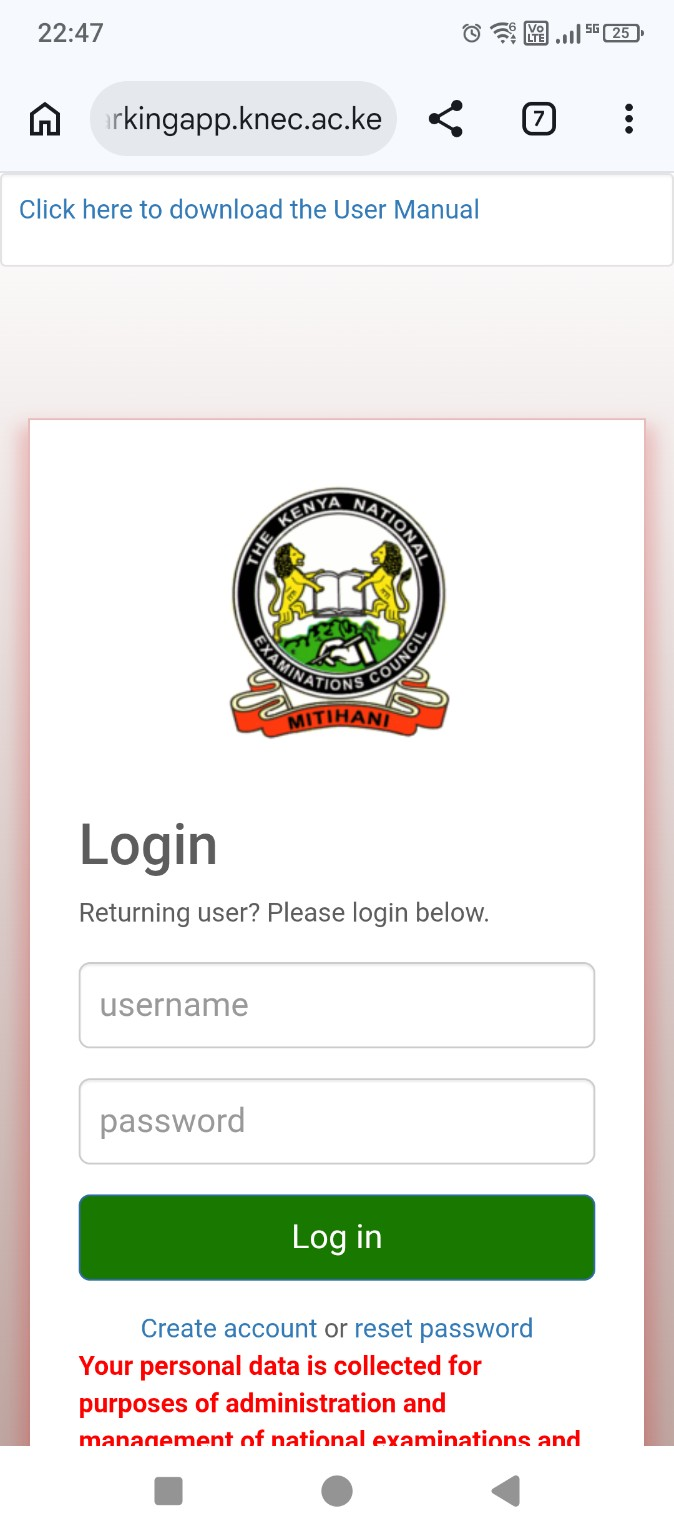
How to Log in to KNEC CP2 Examiners Portal
To access your examiner account, follow these steps:
- Open Google Chrome or another internet browser.
- Visit https://examinersapp.knec.ac.ke/.
- Wait for the Kenya National Examinations Council login page to load.
- Enter your registered username.
- Enter your CP2 password.
- Click the Log in button.
- Wait for the system to authenticate your login details.
- Upon successful login, you will be redirected to your examiner dashboard.
Examiners who have forgotten their passwords can use the password reset option available on the login page and follow the instructions provided by the system.
Related guide: KNEC Examiners Login Portal: How to Create an Account, Log In and Update Your Profile.
How to Download KNEC Examiners Marking Invitation Letter
After logging into the CP2 portal, examiners should check their dashboard for available deployment information and invitation letters.
The dashboard contains an Examiner Deployments section showing details such as the examination year, paper code, designation, instructions and available actions.
Use the following procedure to download your marking invitation letter:
- Log in to the KNEC Examiners Portal.
- Open your examiner dashboard.
- Scroll down to the Examiner Deployments section.
- Identify the examination year and paper code corresponding to your deployment.
- Locate the Action column.
- Click the View Letter button against the relevant deployment.
- Allow the marking invitation letter to open.
- Download the document and save it on your phone or computer.
- Open the downloaded document and check the reporting information and other instructions.
Examiners should keep a copy of their invitation letters for reference and reporting purposes.
How to Download KNEC Marking Instructions
KNEC provides examination marking instructions to guide examiners during the marking exercise. These instructions contain important information that examiners are expected to understand and follow.
To access the instructions:
- Visit the KNEC Examiners Portal.
- Log in using your CP2 credentials.
- Scroll down to the Examiner Deployments section.
- Identify your examination year and paper code.
- Click the Instructions link in the relevant deployment row.
- Wait for the instructions document to open.
- Download and save the document on your device.
- Read the instructions carefully before the marking exercise.
It is advisable to read the instructions before accepting a marking offer or reporting to the marking centre. Examiners should observe all the regulations provided by KNEC.
Also read: KCSE KNEC Marking Instructions for Examiners.
How to Update Your KNEC CP2 Examiners Profile Details
Examiners should ensure that their CP2 accounts contain accurate personal, academic, employment and banking information. The profile update facility allows registered users to review and amend their records.
To update your details, follow these steps:
- Open the KNEC Examiners Portal.
- Enter your username and password.
- Log in to your account.
- Locate the Your Profile section on the dashboard.
- Click Update Profile.
- Review the information displayed in the profile form.
- Update the sections that require corrections or additional information.
- Upload the required supporting documents.
- Check all the details before submitting.
- Click the available Save or Submit button to record your changes.
1. Personal Information
The personal information section captures the examiner’s identification and contact details.
Depending on the fields displayed, the information required includes:
- Full names.
- Year of birth.
- Gender.
- National identification details.
- KRA PIN number.
- NSSF details.
- NHIF details, where applicable.
- Email address.
- Telephone number.
- Passport photograph.
- KRA certificate.
Ensure that the names and identification information correspond with your official documents. Upload a clear passport photograph and the required KRA certificate.
2. Bank Details
This section enables examiners to provide their banking information for the processing of payments relating to contracted examination services.
The information requested includes:
- Name of bank.
- Bank branch.
- Bank account number.
Check your account number carefully before saving. Ensure that the banking information is accurate and belongs to you.
3. Academic Qualifications
Examiners should provide accurate information about their academic qualifications and professional training.
The portal captures details such as:
- Level of study.
- Name of educational institution.
- Name or title of the course.
- Year of commencement.
- Year of completion.
Ensure that the academic information matches your certificates and other supporting documents.
4. Current Workstation and Employment Details
This section captures the examiner’s current employment information.
Teachers should review the following details:
- Employer.
- Employment or PF number.
- Designation or job title.
- Year employment commenced.
- County.
- Sub-County.
- Current working station or school.
Select the correct county, Sub-County and workstation from the available options. Ensure that your employment details are up to date.
5. Next of Kin Details
The next-of-kin section captures alternative contact information in case KNEC needs to reach an examiner through another person.
The details requested include:
- Full name of next of kin.
- Telephone number.
- Relationship with the examiner.
Provide accurate contact information and ensure that the nominated person can be reached when necessary.
6. Save the Updated Profile
After completing the profile update:
- Review all the information entered.
- Confirm that the required documents have been uploaded.
- Check your bank and employment details.
- Click the available Save or Submit button.
- Wait for the system to process the changes.
- Return to your dashboard and confirm that your details have been updated.
Why Is My KNEC Marking Invitation Letter Not Showing?
Some examiners may successfully log in but fail to find their marking invitation letters on the dashboard.
If you encounter this problem, consider the following:
- Check whether your examiner profile is complete.
- Confirm that the required KRA certificate has been uploaded.
- Check whether your deployment details are displayed.
- Confirm that KNEC has made the relevant invitation letter available.
- Refresh your dashboard and check the Examiner Deployments section again.
- Confirm that you are using the correct CP2 account.
The availability of a marking letter depends on the deployment and documents released by KNEC. Updating your profile does not automatically mean that you have been selected for a marking exercise.
How to Recover a Forgotten KNEC CP2 Password
Examiners who cannot remember their CP2 passwords should use the password reset facility on the official login page.
- Visit the KNEC Examiners Portal.
- Click the reset password option.
- Provide the required registered account information.
- Submit your request.
- Follow the instructions provided by the system to recover access.
Make sure that you use the telephone number registered with your CP2 account where the system requests it.
More information: How to Receive KNEC Examiners SMS and Marking Letter Notifications.
Important KNEC Examiners Portal Links
| Service | Access Link |
|---|---|
| KNEC Examiners Portal | Login Here |
| CP2 Account Login | Open Login Page |
| KNEC Official Website | Visit KNEC |
| Other KNEC Portals | View KNEC Portal Links |
Frequently Asked Questions About KNEC Examiners CP2
1. How do I download my KNEC marking letter?
Log in to the KNEC Examiners Portal, open Examiner Deployments and click View Letter against your available deployment.
2. Where can I find KNEC marking instructions?
Marking instructions are accessible through the Instructions link displayed under Examiner Deployments when the relevant documents are available.
3. How do I update my KNEC examiner profile?
Log in to CP2, open Your Profile and select Update Profile. Review your personal, academic, banking, employment and next-of-kin details before saving.
4. Can I access the KNEC CP2 portal using my phone?
Yes. The portal can be accessed using a smartphone, tablet or computer with an internet connection and a compatible browser.
5. Does updating my CP2 profile guarantee a marking invitation?
No. Profile updates help maintain accurate examiner records but do not automatically guarantee deployment. Marking invitations depend on KNEC’s selection and deployment arrangements.
6. What should I do if my marking letter is missing?
Check your profile, confirm that the required documents are uploaded and revisit the Examiner Deployments section. Also check whether KNEC has released your invitation letter.
Final Word
The KNEC Examiners Portal provides a convenient way for contracted examination professionals to manage their accounts, access marking invitations and obtain examination marking instructions.
All examiners are encouraged to keep their CP2 profiles accurate and updated, regularly check their deployment status and download relevant documents whenever they become available.
Keep visiting Newsblaze.co.ke for the latest KNEC updates, examination news, teacher information, education opportunities and other important announcements.
